

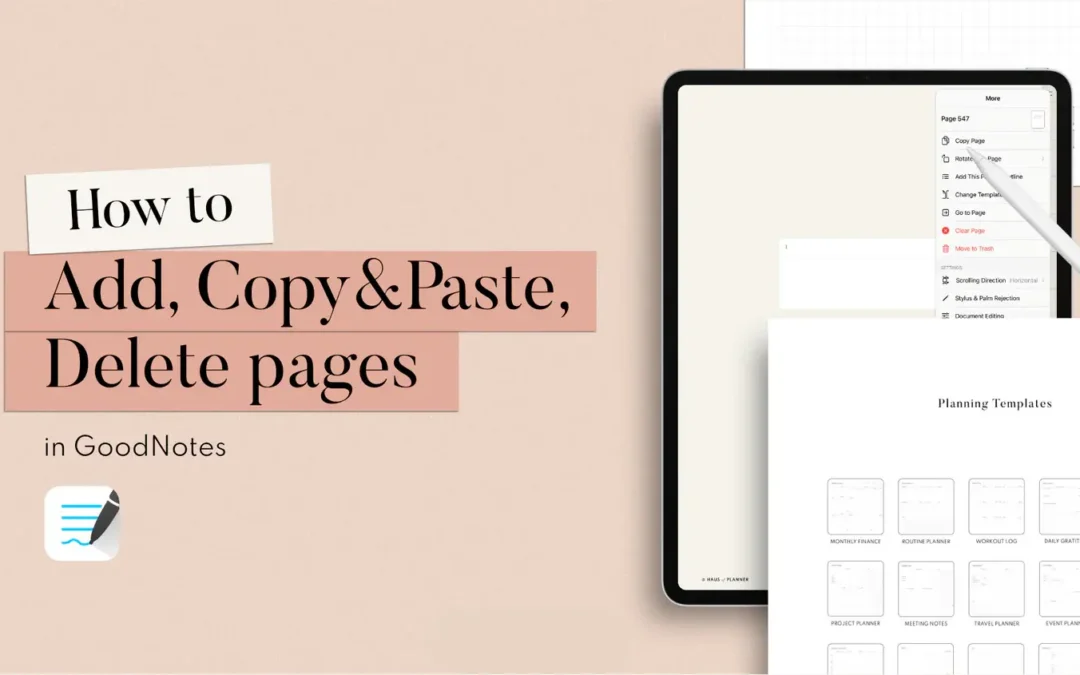
This guide explains how to manage pages in GoodNotes, including how to add new pages, copy and paste existing ones, and delete unwanted pages. By using the page thumbnails and menu options, users can easily organize their digital notebooks for better workflow and efficiency.
Add Pages in GoodNotes
Method 1: From the Page Thumbnails
- Open your notebook.
- Go to the page you want to add page.
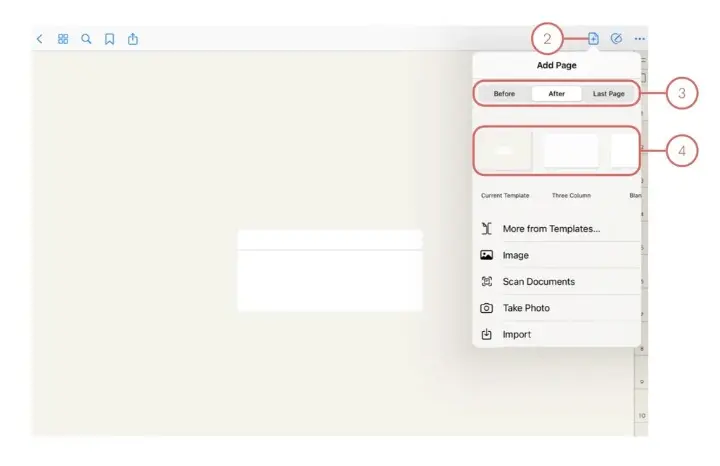
- Tap the thumbnail icon (usually on the top left or right, looks like a grid or series of pages).
- Tap the “+” button (Add Page).
- Choose from templates (like blank, lined, graph paper, or your custom template).
- Select whether you want to insert the page Before, After or Last Page.
Method 2: From the Menu
- Open your notebook.
- Tap the More (three dots) menu in the top corner.
- Select Add Page.
Copy & Paste Pages in GoodNotes
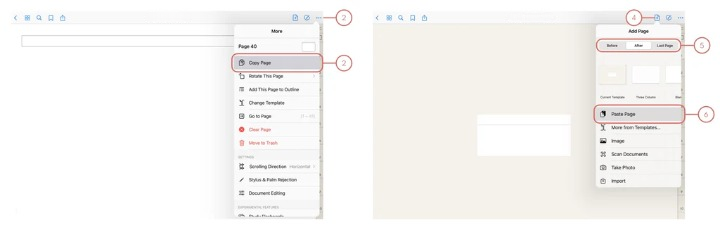
- Go to the page you want to copy.
- Tap the … (More icon), then select “Copy Page”.
- Navigate to where you want to place the copied page.
- Tap the + (Plus page icon).
- Select whether you want to insert the page Before, After or Last Page.
- Tap “Paste Page”.
Re-Arrange Pages in GoodNotes
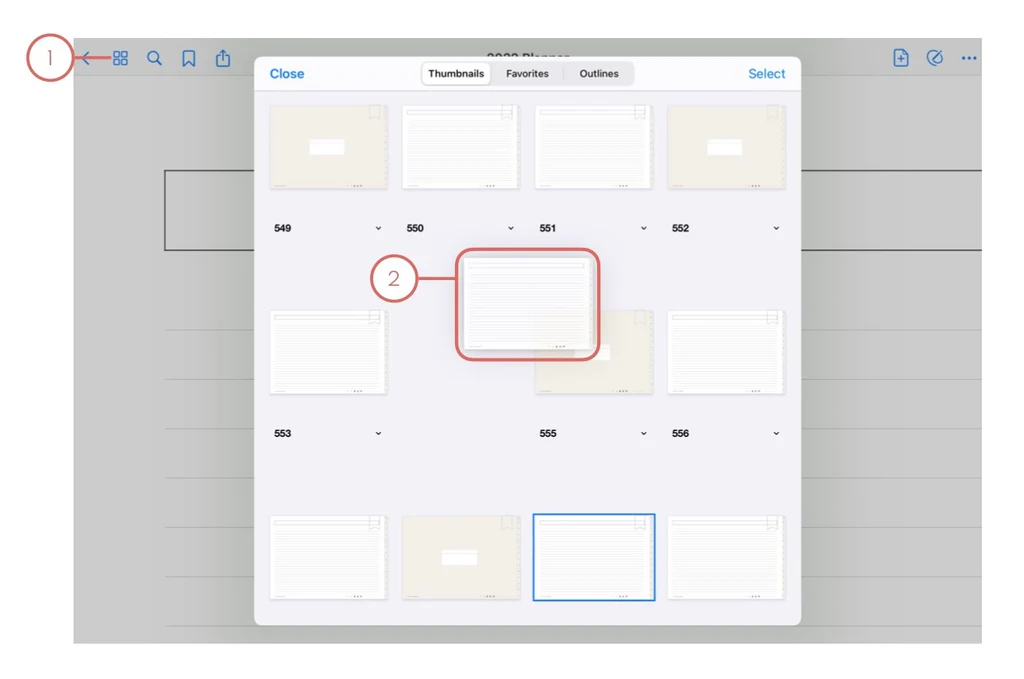
- Tap the Thumbnail View icon to open up a thumbnail of the document.
- Tap and hold the page you want to re-allocate and drag it to where you want it to be placed.
Delete Pages in GoodNotes
- Tap the thumbnail icon to open page thumbnails.
- Tap Select.
- Select the page(s) you want to delete.
- Tap the trash bin icon or Delete.
- Confirm deletion if prompted.
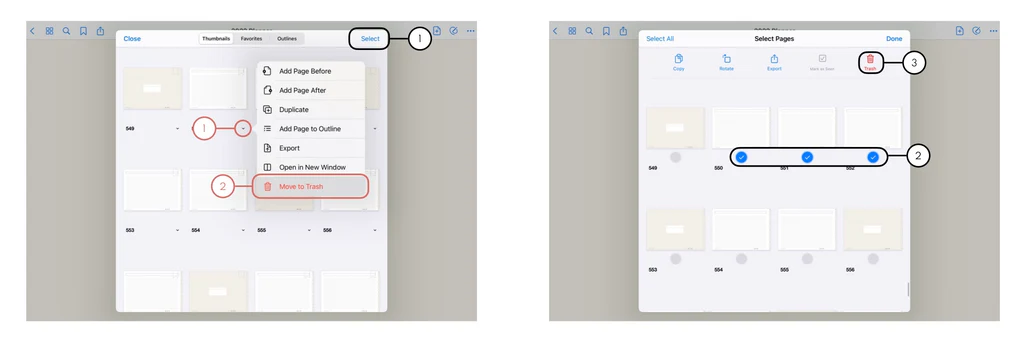
(Notes: To delete more than one page at a time, tap “Select” in the upper right, then select the pages you want to remove, then tap “Trash”.)

Recent Comments